Badges are small icons next to your name on your profile. You earn them through purchases, events and the community. You can also choose which ones to show and in what order.
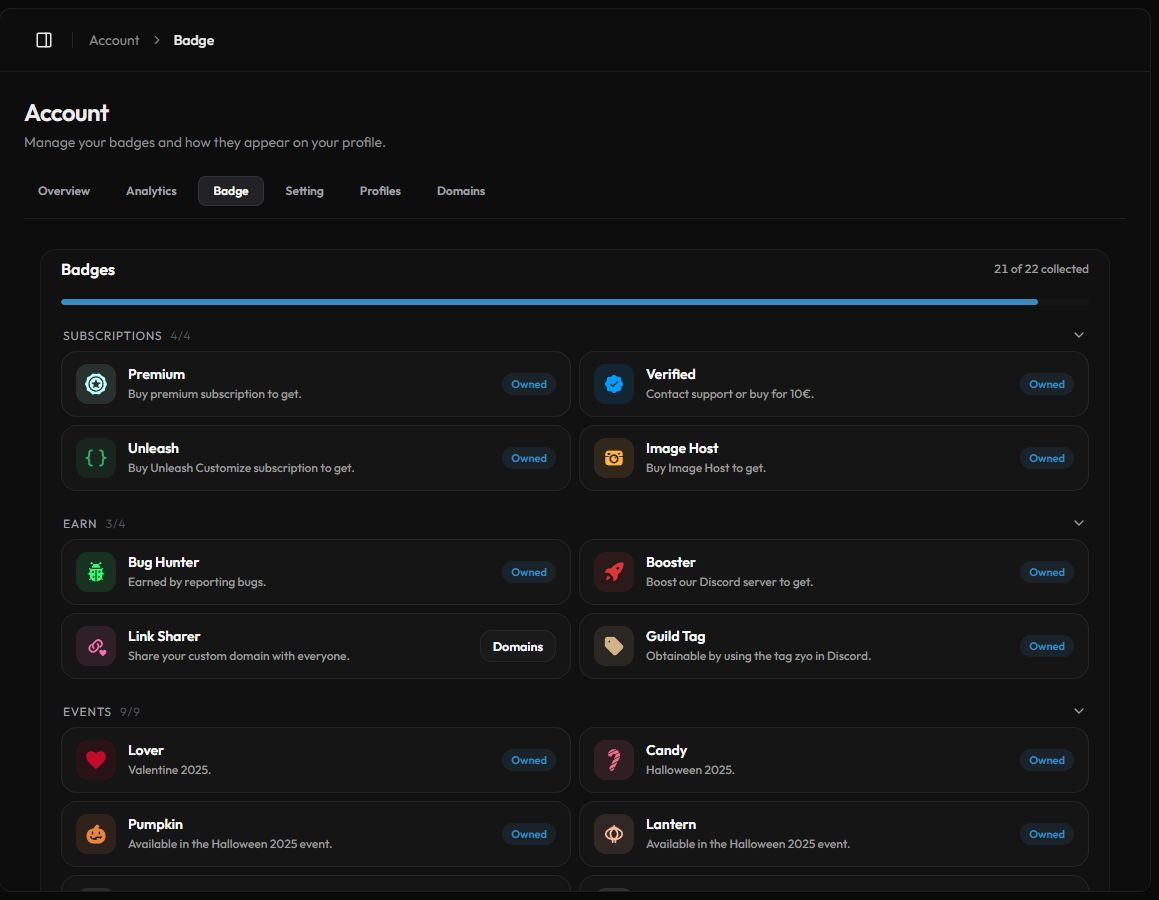
All badges
Open Account › Badge or go to zyo.lol/badge. The top of the page shows how many you've collected, for example "21 of 22 collected". Badges you own are marked Owned. Each group can be collapsed.
| Group | Badges | How to get them |
|---|---|---|
| Subscriptions | Premium, Verified, Unleash, Image Host | Buy the matching product. Verified can also be given by support. |
| Earn | Bug Hunter, Booster, Link Sharer, Guild Tag | Report bugs, boost the zyo Discord server, share your custom domain, or wear the zyo server tag on Discord. |
| Events | Lover, Candy, Pumpkin, Lantern, Moon, Education, Witch Hat, Cauldron, Tombstone | Claimed or bought during limited-time events. Unavailable ones say Not available yet or have ended. |
| Team & legacy | OG, Donator, Developer, Staff, Support | OG went to the first 400 users. Donator changes with your donation tier. The rest are for the zyo team. |
Discord badges need a linked Discord
Booster and Guild Tag are checked against your Discord account, so connect Discord first. See Account settings.
Claim an event badge
- Find the badge. Open the Events group while the event is running.
- Press Claim or Buy. Free event badges have a Claim button. Paid ones show their price.
Show, hide and order badges
Scroll down to Badge Control. Every badge you own is listed there.
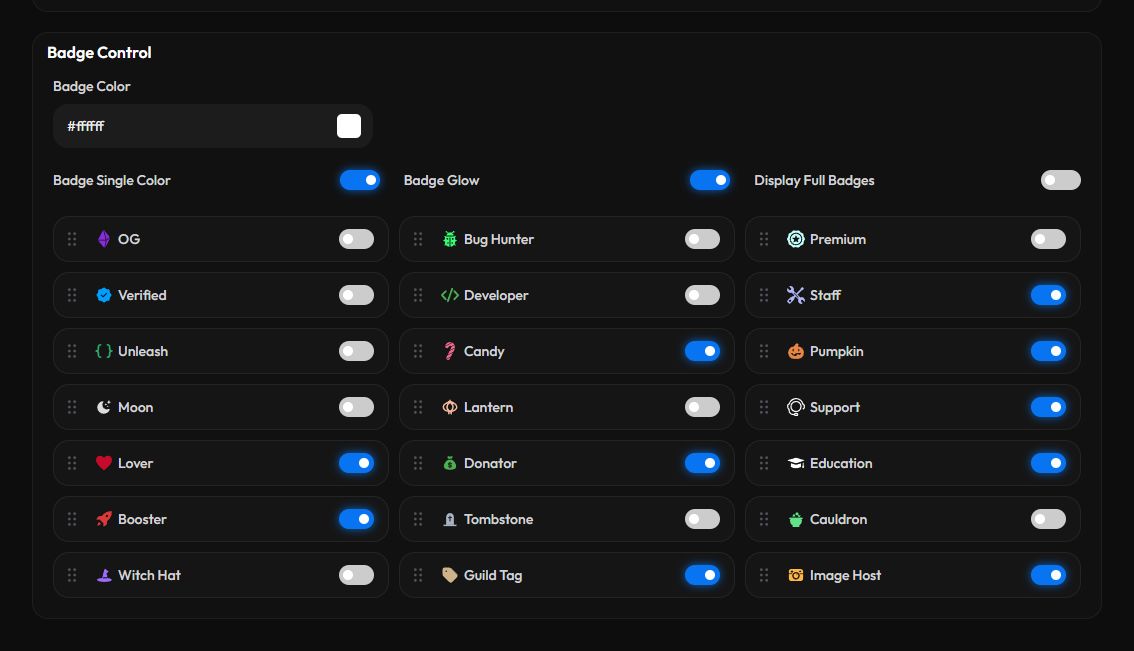
- Reorder. Drag a badge by its handle. The top of the list shows first on your profile.
- Hide a badge. Turn on the switch next to a badge to hide it from your profile. You still own it.
- Save. A bar says "You have unsaved badge changes." Press Save, or Reset to undo.
Badge style options
- Badge Color picks a color for your badges.
- Badge Single Color paints every badge in that one color.
- Badge Glow adds a soft glow.
- Display Full Badges shows every badge at once. When it's off, a long row of badges fits into a scrolling strip.
Custom badges
A custom badge is your own image and name, shown like any other badge.
- Premium users who own the OG badge can add one custom badge for free.
- Everyone else can buy a custom badge token with Buy custom badge token in the Custom Badge group. The page shows how many tokens you have left.
- Press Add. In the Custom Badge group, press Add.
- Upload an image. PNG, JPG, GIF or WEBP, up to 1 MB.
- Name it. Type a Badge Name and press Save.
Tip
Small square images with a transparent background look best at badge size.