Links come in two kinds on zyo.lol: social icons, the small row of platform icons under your name, and image links, the bigger link cards. Both are free, with higher limits on Premium.
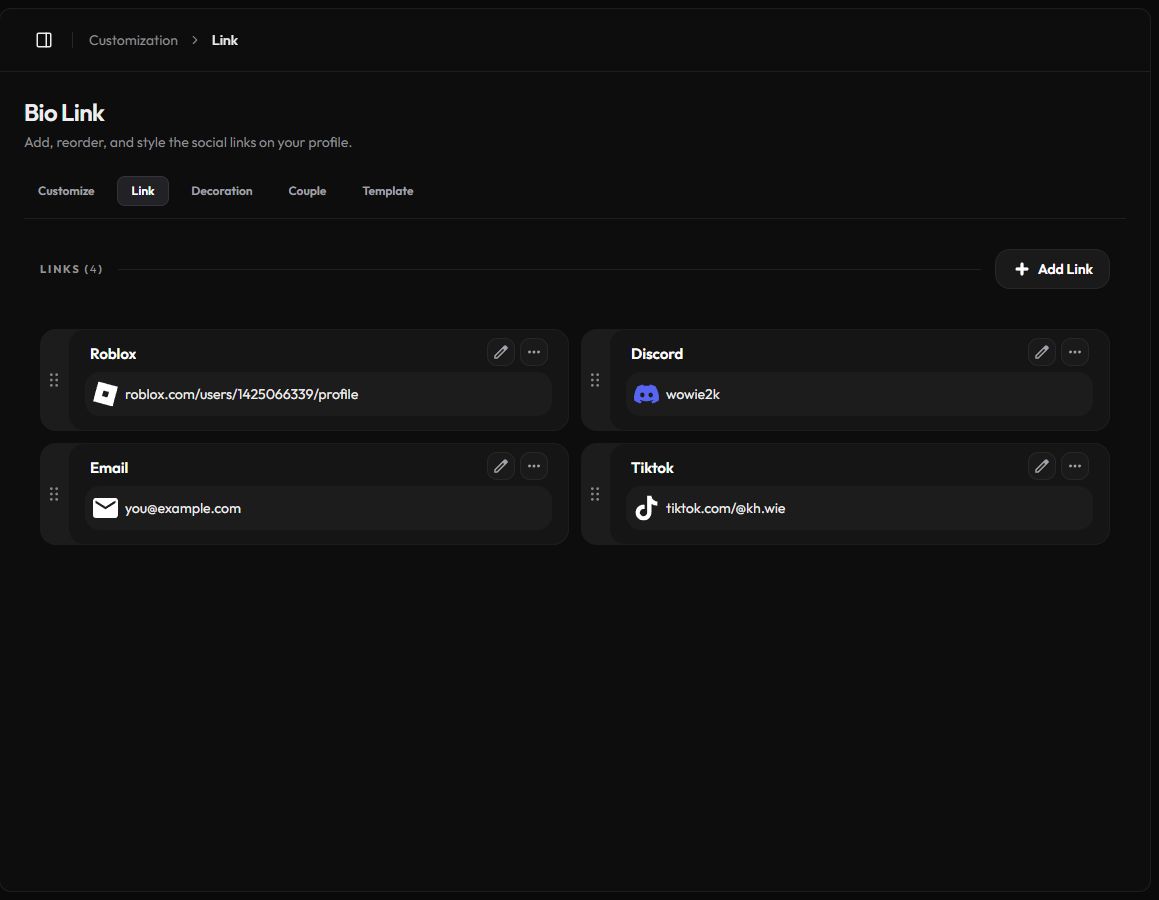
Add a social icon
- Open the Link page. Go to Customization › Link or zyo.lol/link.
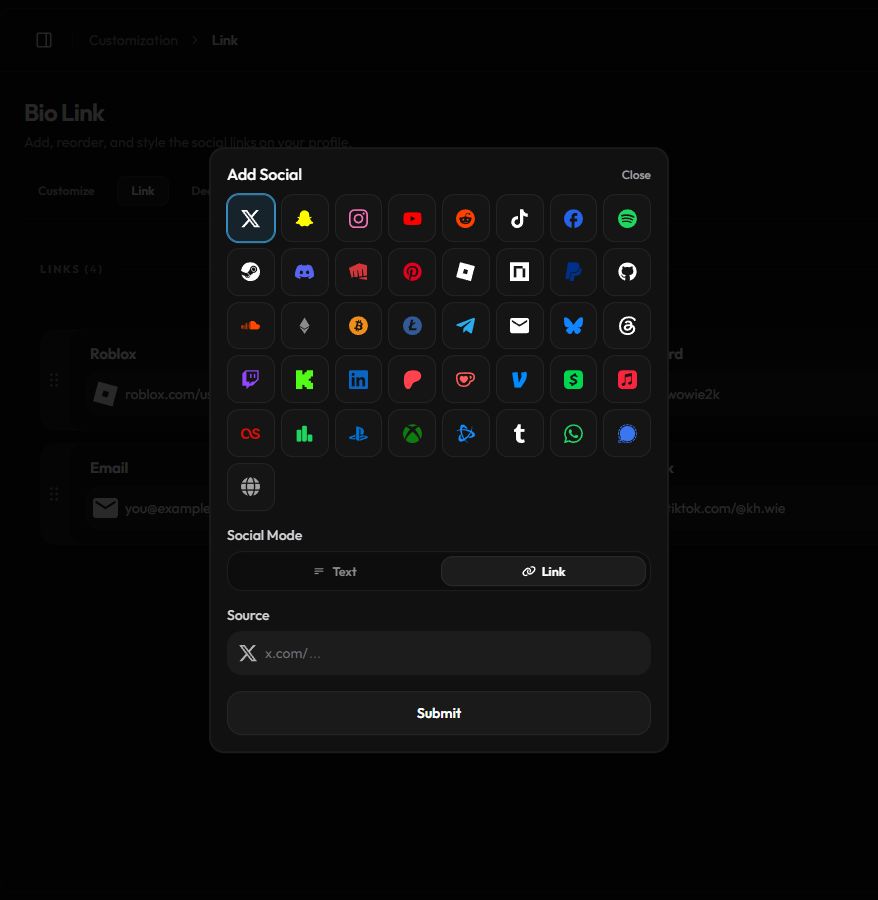
- Press Add Link. The Add Social popup opens.
- Pick a platform. Under Link Type, click an icon. There are more than 40, including X, Instagram, TikTok, YouTube, Discord, Spotify, Steam, Roblox, GitHub, Twitch, Kick, PayPal, crypto wallets and email.
- Choose a Social Mode. Link opens the URL when clicked. Text copies the text instead, which suits a Discord username or a wallet address.
- Fill in the Source. Enter your username, ID or link, then press Submit.
Use your own icon
The globe icon at the end is Custom. Upload your own icon (PNG, JPG, GIF or WEBP up to 5 MB) and add any http:// or https:// link up to 255 characters.
Edit, hide, delete and reorder
- Edit. Press the pencil on a card to open Edit Social.
- Hide. Open the ⋯ menu and press Hide Social. The card is marked Hide and disappears from your profile. Use Show Social to bring it back.
- Delete. In the ⋯ menu, press Delete and confirm. This can't be undone.
- Reorder. Drag a card by the dotted handle on its left. Your profile uses the same order.
Style your icons
Icon Single Color, Big Link and the Icon color live on the Customize page. See Customize your profile.
Image links
Image links are larger cards with a title, a URL and a picture. Add them from Customization › Customize › Link Customize. They look different depending on your layout, so there are two tabs:
| Tab | Links (Free / Premium) | Image |
|---|---|---|
| Layout 1 / 4 / 5 Image-forward cards | 6 / 10 | Up to 10 MB |
| Layout 2 / 3 / 6 Compact row links | 25 / 50 | Up to 5 MB |
- Pick the tab that matches your layout.
- Press the add button. In Add New Link, enter a Link Title and Link Url, and upload an image.
- Manage it. Each link has Edit Link, Visit Link, Hide Link and Delete Link. Drag links to reorder them.