Avatar decorations are animated frames around your profile picture, like the ones on Discord. There are hundreds to pick from, and they're free for everyone.
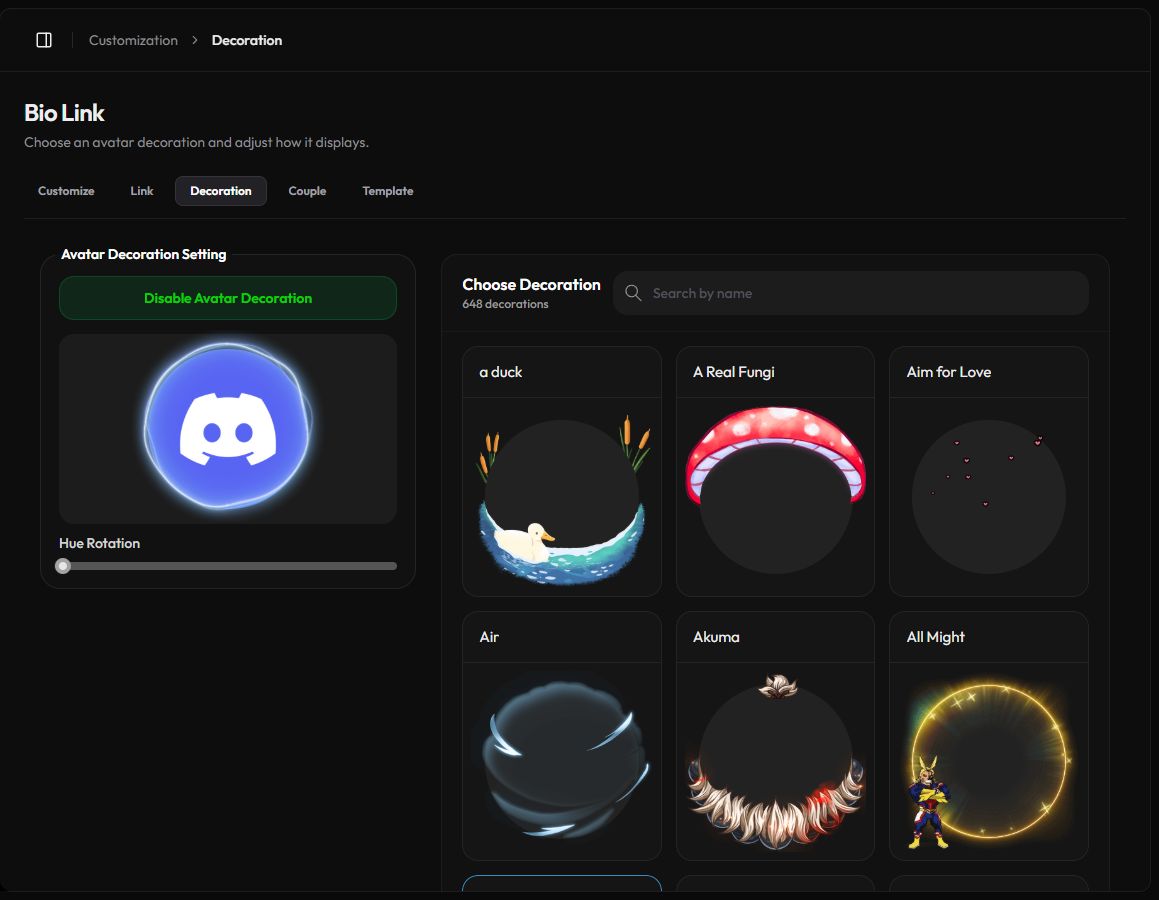
Choose a decoration
- Open Decoration. Go to Customization › Decoration or zyo.lol/decoration. You can also press Change Decoration under your avatar on the Customize page.
- Find one. Scroll Choose Decoration or type in Search by name. Use Previous and Next to page through results.
- Preview it. Click a decoration. The preview under Avatar Decoration Setting updates right away.
- Save. A bar says "You have unsaved decoration changes." Press Save, or Reset to go back.
Turn decorations on or off
Press Enable Avatar Decoration to show your decoration on your profile, or Disable Avatar Decoration to hide it. Your chosen decoration is kept, so you can switch it back on later.
The decoration count next to Choose Decoration shows how many match your search. No results? Try a shorter keyword.
Change the color with Hue Rotation
Drag the Hue Rotation slider to shift the decoration's colors. It's a quick way to match a decoration to your theme. Save when you're happy with it.
Using your Discord decoration
Already have a decoration on Discord? With Discord connected, the Avatar and Decoration toggles under Discord Setting on the Customize page can use your Discord avatar and its decoration instead. When the Discord avatar is on, this page previews the decoration on your Discord avatar.