
Image Host You can upload from the panel, take screenshots straight to zyo.lol with ShareX on Windows, share from your Android phone with XShare, or use the API.
File types and limits
- Types: PNG, JPG, GIF, WEBP, MP4, WEBM and MOV.
- Size: up to 100 MB per file, or 250 MB with Premium. ShareX, XShare and one-request API uploads stop at 95 MB per file.
- Storage: 30 GB in total, or 50 GB with Premium.
- Rate limit: up to 60 uploads every 10 minutes.
MOV files only play in browsers when they use the H.264 codec. iPhone videos are often HEVC, which may not play. The panel warns you after the upload if a video cannot play in your browser. Convert it to MP4 (H.264) so everyone can watch it.
Upload from the panel
- Open the upload box. Go to Panel › Image Host › Overview, or use the Upload card in the Gallery.
- Pick your options. Turn on Anonymous to hide your name, and choose an embed for these uploads (or keep Use my default).
- Add files. Click to browse, drag files onto the box, or paste an image with Ctrl + V. You can add several files at once.
- Wait for it to finish. Keep the page open until every upload is done. The link of the first file is copied to your clipboard.
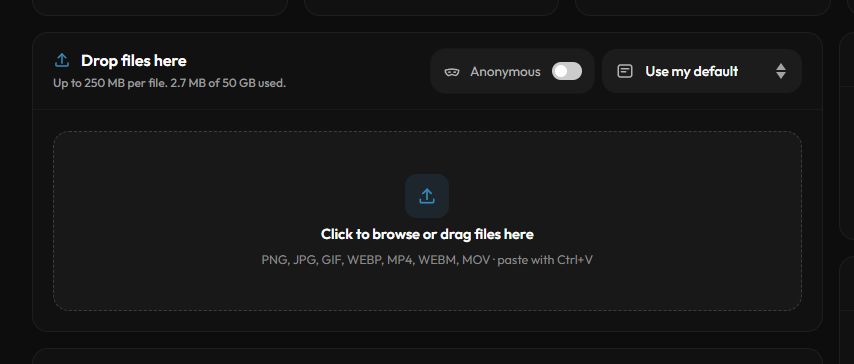
Uploading from the Gallery while a folder is open puts the files into that folder. Otherwise your auto folder rules decide where they go.
ShareX on Windows
ShareX uploads every screenshot to zyo.lol and copies the link for you.
- Install ShareX. Download it from getsharex.com.
- Create a key. Go to Panel › Image Host › Settings, pick Windows in the Setup card and click Create key.
- Download the config. Click Download config to get a
.sxcufile. - Import it. Open the
.sxcufile and choose Yes to make zyo.lol your default uploader. - Take a screenshot. Press Ctrl + Print Screen. The link is copied automatically.
ShareX and XShare upload up to 95 MB per file, even with Premium. For bigger files, upload from the panel. If you try, ShareX shows the error “This file is too large for ShareX”.
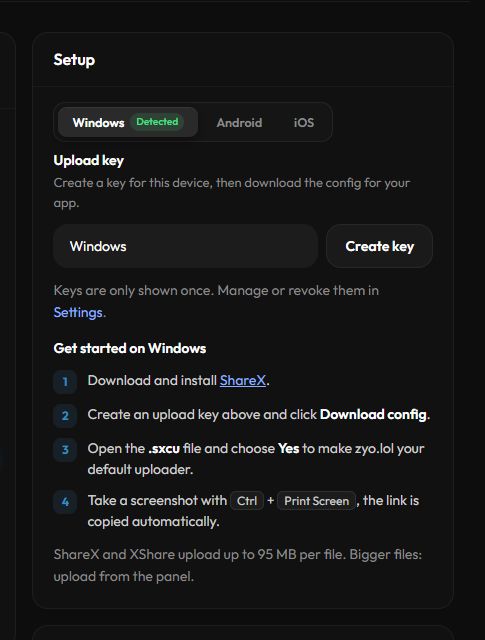
The key is shown only once and the config file contains it. Anyone with it can upload to your account. If it leaks, revoke it in settings and make a new one.
XShare on Android
- Install XShare. Download the APK from the XShare GitHub releases.
- Create a key. In Panel › Image Host › Settings, pick Android in the Setup card and click Create key.
- Download the config. Click Download config to get the XShare config file.
- Import it. Open XShare and import the downloaded file.
- Share. Share any screenshot or image to XShare and the link is copied automatically.
There is no iOS app setup yet. Open the Gallery in Safari and upload from there.
Upload with the API
Scripts and other apps can upload, list and delete files with an API key. Keys work the same as the ShareX key. Files up to 95 MB can be sent in one request; bigger files use the three-step direct upload. See the Image Host API for endpoints and examples.