Creating a zyo.lol account is free and takes about a minute. You can sign up with Discord, Google, or an email and password.
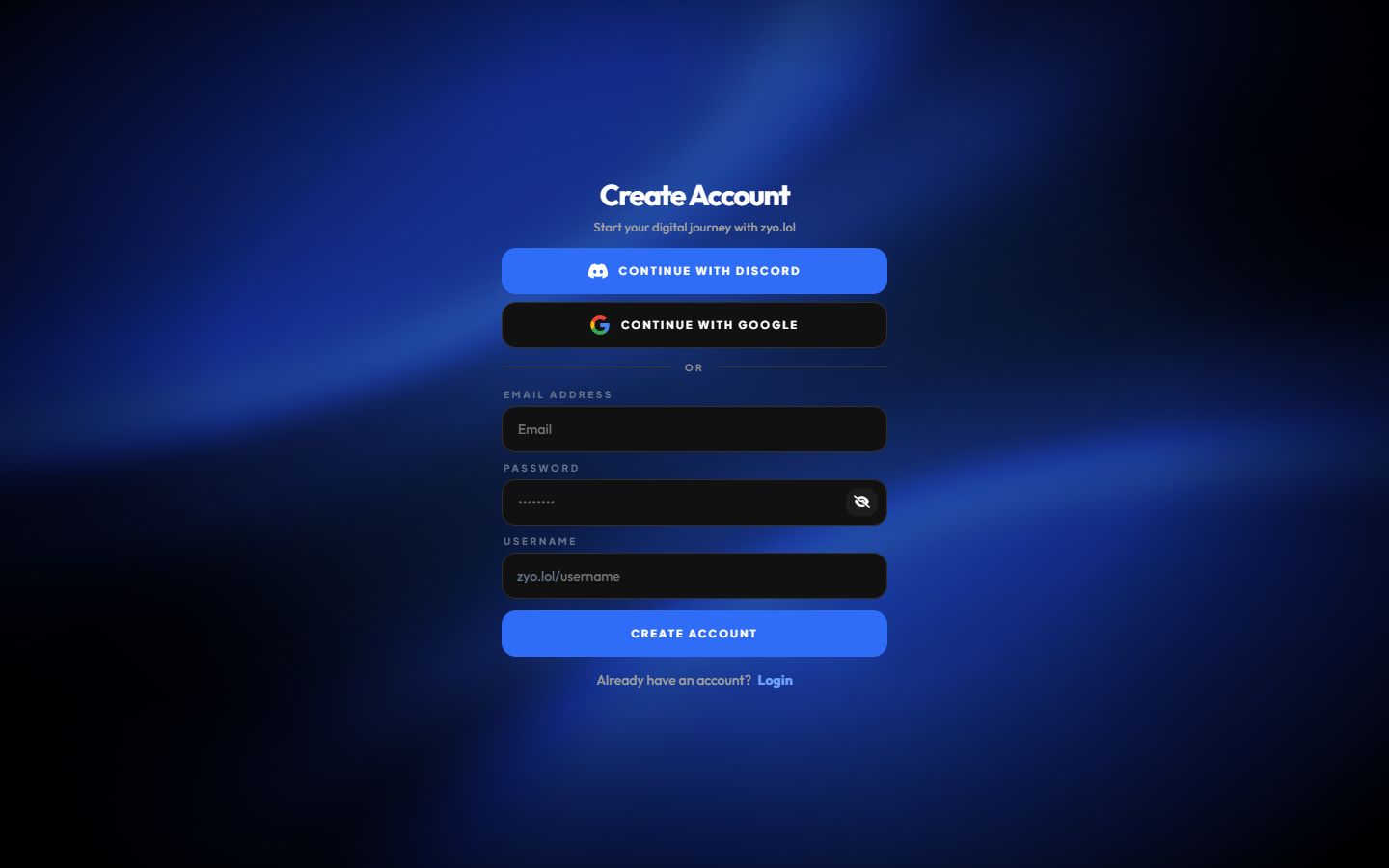
Sign up
- Open the sign-up page. Go to zyo.lol/register.
- Pick a sign-up method. Click Continue with Discord or Continue with Google, or fill in Email Address, Password and Username.
- Press Create Account. A Security Check captcha pops up. Complete it and your account is created automatically.
- Verify your email. If you signed up with email, check your inbox for the verification link (see below).
When you sign up with Discord or Google you choose your username on the next screen. There is no email link to click.
Choose your username
Your username becomes your profile link: zyo.lol/username.
- 3 to 20 characters.
- Only letters
a-z, numbers0-9and-_.are allowed. No emojis or spaces. - It can't end with a period, and some reserved words are blocked.
- It must not already be used as someone's username or alias.
You can change your username later from Overview › Account Manager › Change Username. Your old link stops working when you do.
Password rules
Use a password with at least 9 characters. You can change it any time from Account › Setting › Quick Actions › Change Password.
Verify your email
After signing up with email, you land on a page that says We sent a verification link.
- Open the email. Look for "Confirm your email address" from zyo.lol. Check your spam folder too.
- Click Verify. You'll see Authentication Success, and you can close that tab.
Need a new one? Request it at zyo.lol/resend. You can ask for another email once a minute.
New accounts that never finish the setup flow (choosing a layout) are removed after about 24 hours. See Set up your first profile.
Logging in
- Log in at zyo.lol/login with the same method you used to sign up.
- When you log in from a new network, zyo.lol may email you a 6-digit code. Enter it to finish logging in. The code is valid for 15 minutes.
- Forgot your password? Click Forgot? on the login page to get a reset link.
Signed up with Discord or Google? You can also add an email and password later from Account › Setting, so you're never locked out. See Account settings.