Everything in the zyo.lol shop is a one-time payment: Premium, Unleash, Verify, the Image Host, custom badges, event badges, custom domain time, alias slots and Donator tiers. This page walks you through checkout.
Before you buy
- Log in first. The shop needs an account. If you're logged out, the buy buttons take you to the login page.
- Check the price. Current prices and sales are on the Pricing page. Prices are in euros (€).
- No subscriptions. Products are yours for life. Custom domain time is the only thing that runs out, and you can buy more to renew it.
Checkout step by step
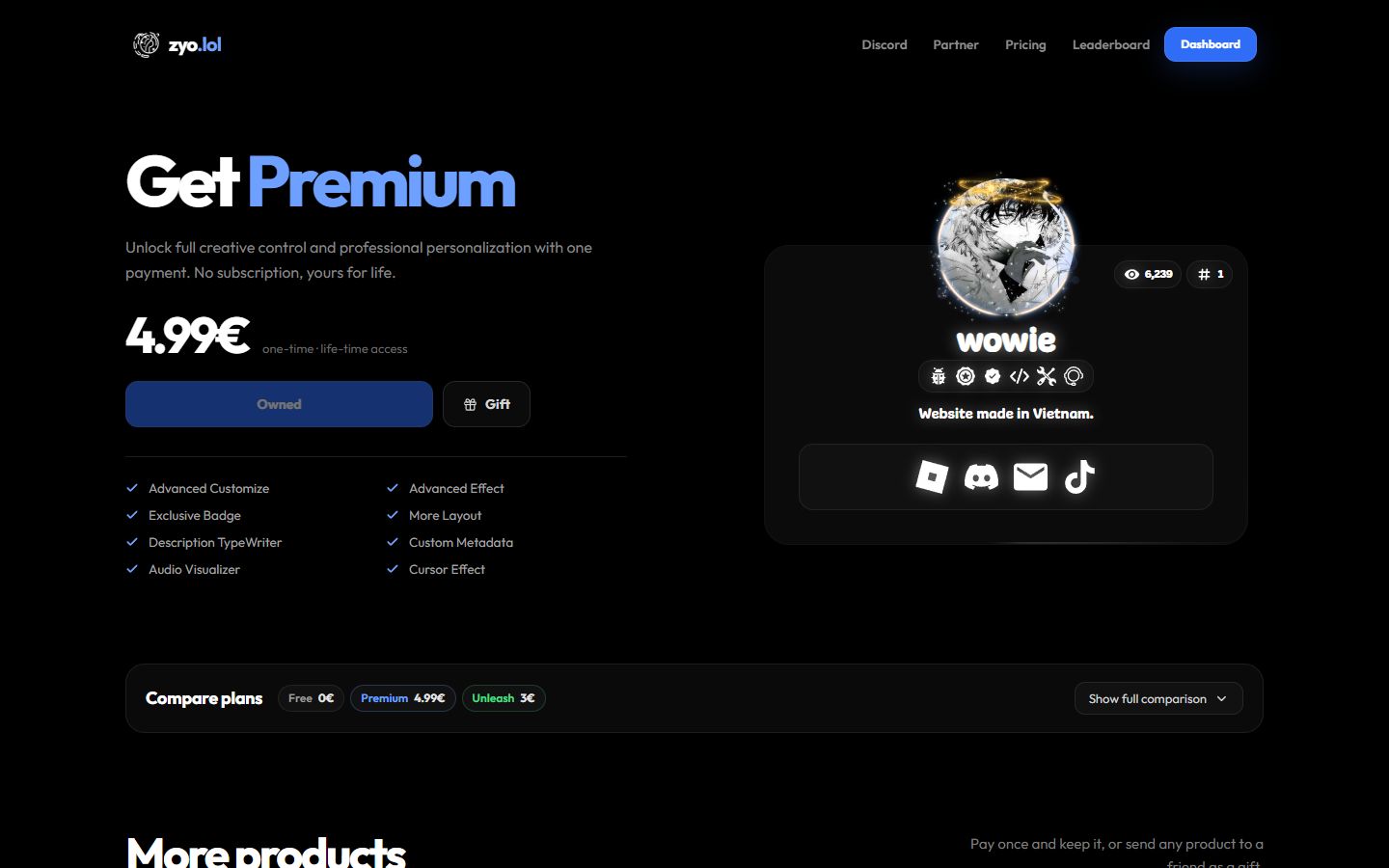
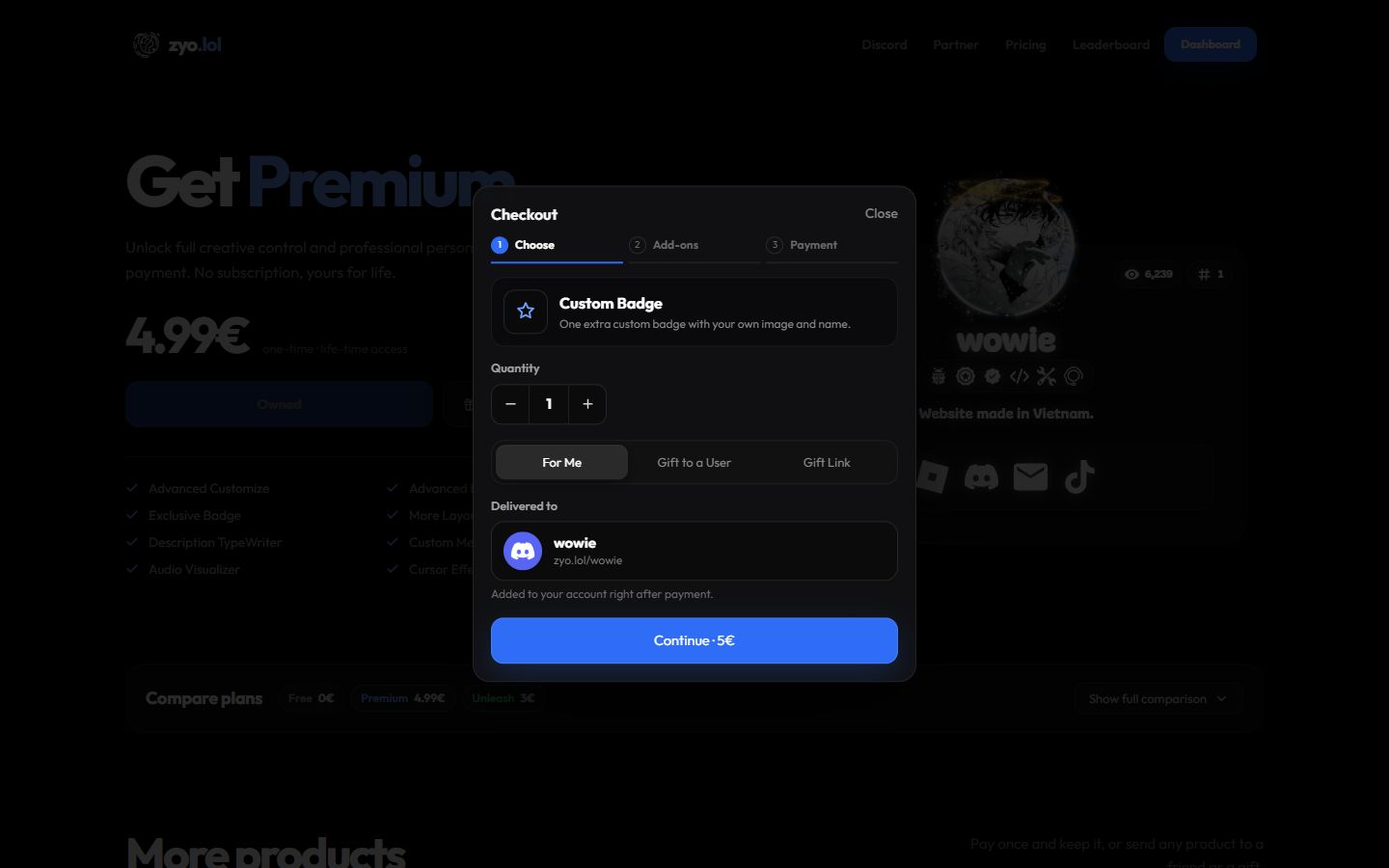
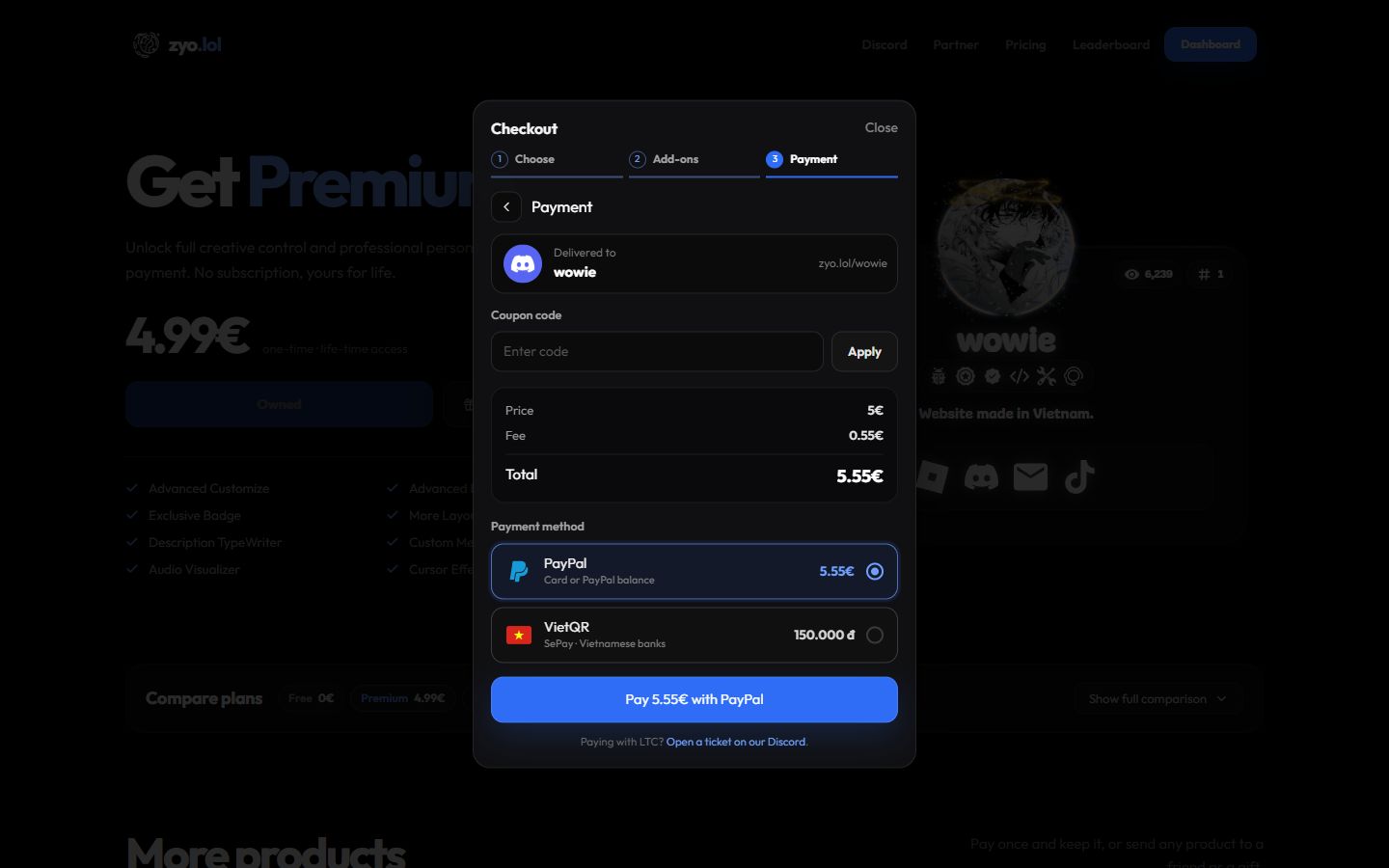
Press Buy now (or Buy Premium) on any product. Checkout opens with three steps: Choose, Add-ons and Payment.
- Choose. Pick the options for the product, like the Quantity, a Duration for a custom domain, a Tier for Donator, or which event Badges you want. Then choose who it's for: For Me, Gift to a User or Gift Link. Press Continue.
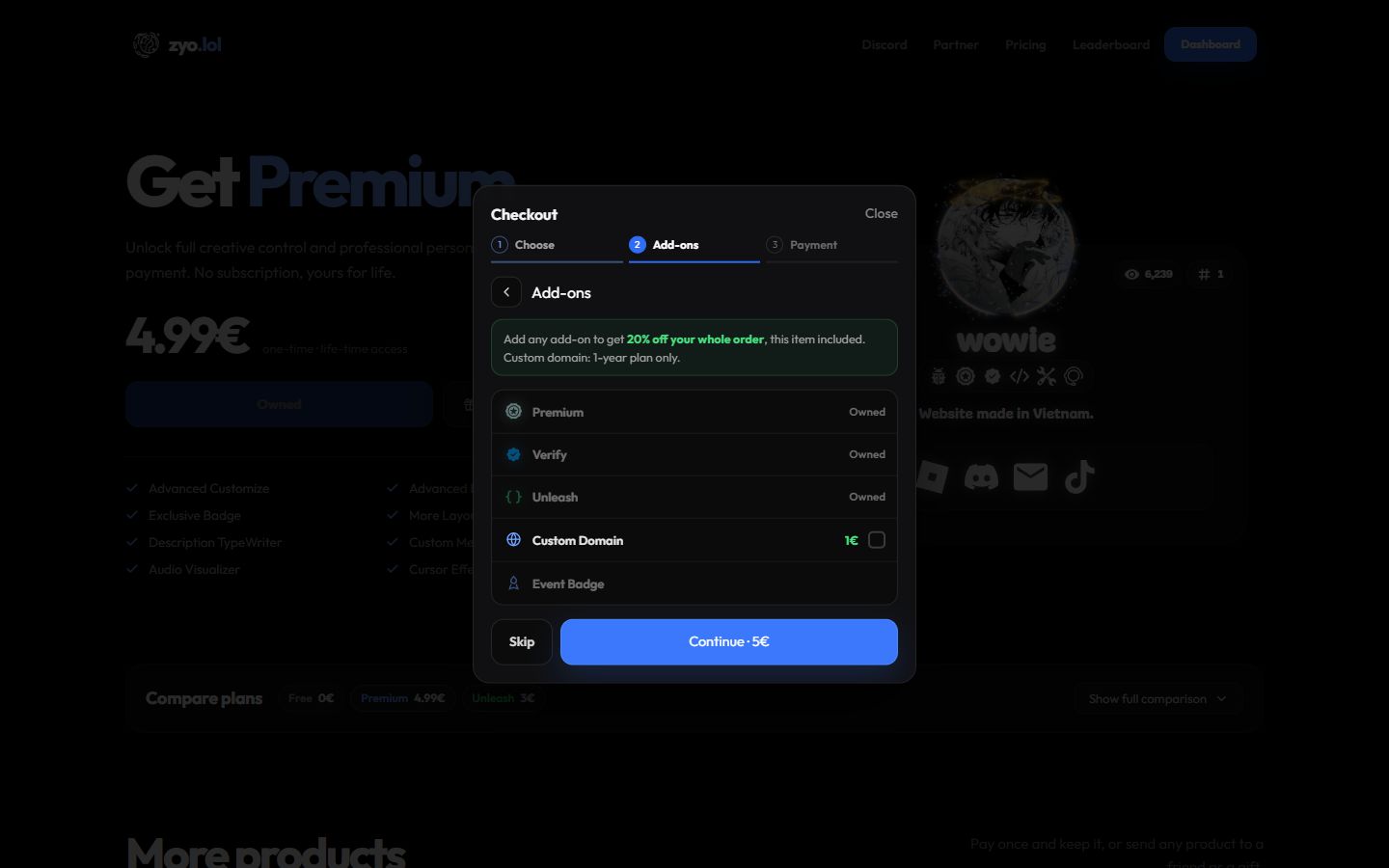
- Add-ons. Tick any extra products to add to the same order, or press Skip. See Add-ons and bundle discount.
- Payment. Check who it's delivered to, enter a coupon if you have one, review the summary and pick a payment method.
- Pay. Press Pay … with PayPal or Pay … with VietQR and follow the payment screen.
One-time products you already have show Owned, and checkout tells you You already own …. You can still buy them as a gift.
Add-ons and bundle discount
On the Add-ons step you can add Premium, Verify, Unleash, a Custom Badge, Custom Domain time or an Event Badge to the same order. Add any add-on and you get a discount on your whole order, the main item included. The exact percent is shown at the top of the step.
- Custom domain time only counts for the bundle discount on the 1-year plan.
- Alias slots and Donator tiers can be bought, but they don't count towards the bundle discount.
- Products you already own show Owned and can't be added.
Coupons
- Enter the code. On the Payment step, type it into Coupon code. Upper or lower case doesn't matter.
- Apply it. Press Apply. The discount appears in the summary as Coupon with its code.
Some coupons only work for certain products, have a limited number of uses, or can be used once per account. If a code doesn't work you'll see Invalid or expired coupon. or You have already used this coupon.
Payment methods
| Method | How you pay | Notes |
|---|---|---|
| PayPal | Card or PayPal balance, in a PayPal window. | A small PayPal fee may be added. It's shown as Fee in the summary before you pay. |
| VietQR | Scan the QR code with a Vietnamese banking app (SePay). | The price is shown in đồng. Transfer the exact amount with the exact transfer note shown. |
| LTC | Not in checkout. | Open a ticket on the zyo.lol Discord. |
Enter the amount and the transfer note exactly as shown, or the payment can't be matched to your order. Keep the checkout open: it checks for your payment every few seconds and confirms on its own. Each order stays open for about 30 minutes.
After you pay
- For Me: the product is added to your account right after payment.
- Gift to a User: it goes straight to their account.
- Gift Link: you get a link to share. See Gifts.
- If a product comes with a Discord role, it's given to your linked Discord account.
PayPal can take a moment to confirm. Refresh your account after a minute. If it's still missing, open a ticket on Discord with the time you paid and the method you used.