The Customize page is where most of your profile comes together: images, music, text, effects and colors. Open it from Customization › Customize or at zyo.lol/customize.
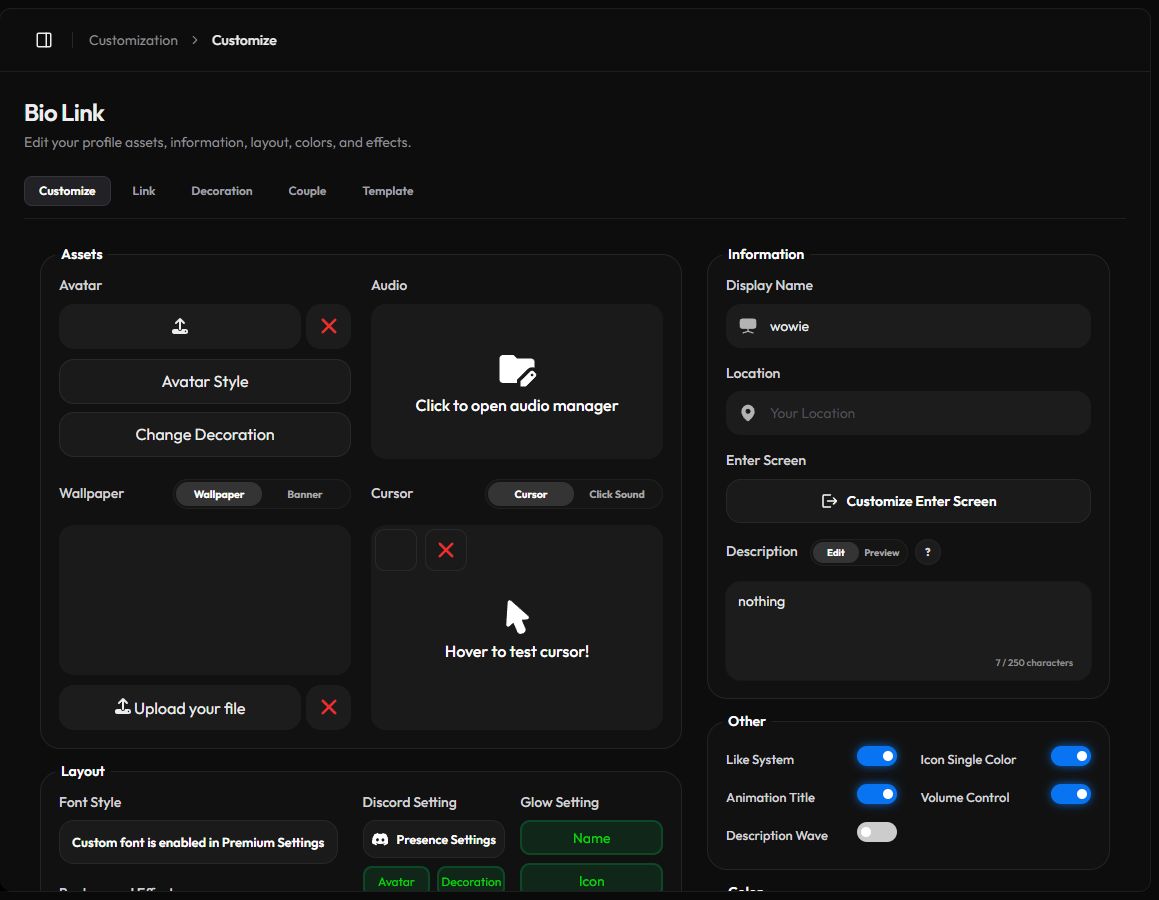
When you edit a field, a bar appears: "Careful -- you have unsaved changes!". Press Save Changes to keep them or Reset to undo. File uploads and popups like the audio manager save on their own.
Assets
| Field | Details |
|---|---|
| Avatar | PNG, JPG, GIF or WEBP up to 10 MB, cropped before upload. Avatar Style sets the corner radius. Change Decoration opens Decorations. |
| Wallpaper | The page background. Images, GIFs or video (MP4, MOV, AVI, M4V). Up to 40 MB, or 100 MB with Premium. |
| Banner | An image across the top of your card, up to 10 MB. The gear button opens Banner Settings: Height (100 to 200 px), Fade and Float Info. Layout 5 has no banner. |
| Audio | Opens the Audio Manager (see below). |
| Cursor | A custom mouse cursor: CUR, PNG, JPG, GIF or WEBP up to 5 MB. Hover the box to test it. |
| Click Sound | A sound when visitors click: None, a Preset, or a Custom file up to 1 MB. |
Music and the Audio Manager
- Open it. Click Click to open audio manager.
- Add a track. Press Add Audio and upload an MP3, OGG or AAC file. You can add a cover image and a title.
- Add lyrics. Use Search Lyrics to find synced lyrics, or Import .lrc to use your own file.
- Make it active. Click the track you want to play on your profile.
Options in the manager include Music Track, Random Music (play a random track from your list), Audio Widget, Lyrics Display and Music Style, plus Audio Volume.
Free profiles can keep 3 tracks. Premium raises this to 6.
Information
- Display Name is the name shown on your profile. It can be different from your username.
- Location shows a small location line.
- Enter Screen is the "click to enter" screen visitors see first. Press Customize Enter Screen to set a Title (up to 80 characters), Subtitle (up to 120), an Enter Screen Icon up to 5 MB and an Enter Animation.
- Description is up to 250 characters. Switch between Edit and Preview. It supports bold, italic, strike, code, links and Discord emoji written as
<:name:id>or<a:name:id>.
Layout and effects
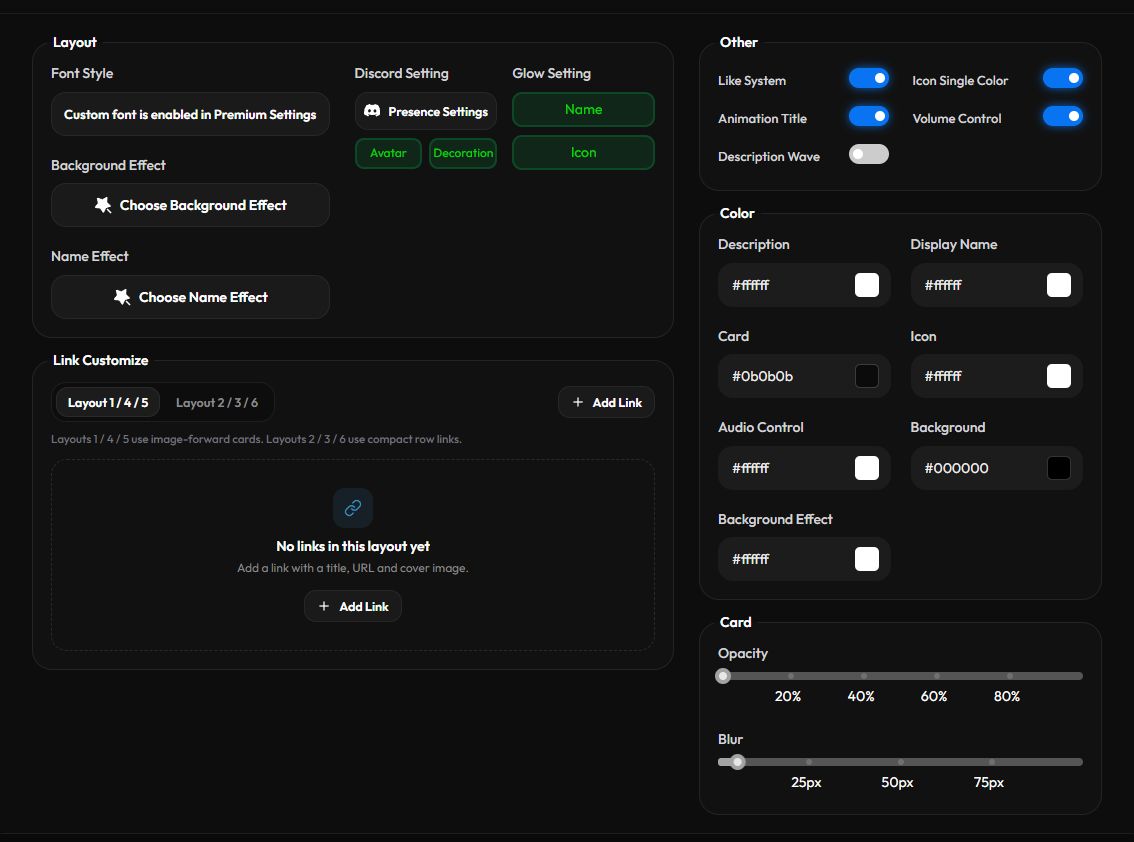
- Font Style picks the profile font. Uploading your own font is a Premium setting.
- Background Effect and Name Effect open a picker with a live preview. Some effects are marked as heavy for low-end devices.
- Discord Setting: Presence Settings turns your Discord presence on or off and lets you show Discord badges, your guild tag and a custom idle text. The Avatar and Decoration toggles use your Discord avatar and avatar decoration. Discord must be connected.
- Card Alignment (Left or Center), Info Alignment (Row or Column) and Glow Setting (Name, Icon).
Switching to another layout resets Card Alignment and Info Alignment to that layout's defaults.
Colors
Pick colors for Description, Display Name, Card, Icon, Audio Control, Background and Background Effect. Want a quick starting point? Apply a theme preset from the Overview.
Other options and Card
| Option | What it does |
|---|---|
| Bio Extra Width | Makes your profile card wider. |
| Like System | Lets visitors like your profile. |
| Icon Single Color | Shows social icons in one color instead of their brand colors. |
| Big Link | Shows larger social icons. |
| Animation Title | Types your name in the browser tab title. |
| Volume Control | Shows a volume control when you have music or a video background. |
| Description Wave | Adds a wave animation to your description. It's skipped when the Premium typewriter description is on. |
| Opacity and Blur | Under Card: how see-through your card is and how much it blurs the background. |
The Link Customize section on this page holds image links, the big link cards. See Links and socials.