
Image Host The Settings tab controls how new uploads behave, which folder they go into, and which devices can upload to your account.
Open Panel › Image Host › Settings. Changes in Upload defaults are saved when you click Save in the bar that appears.
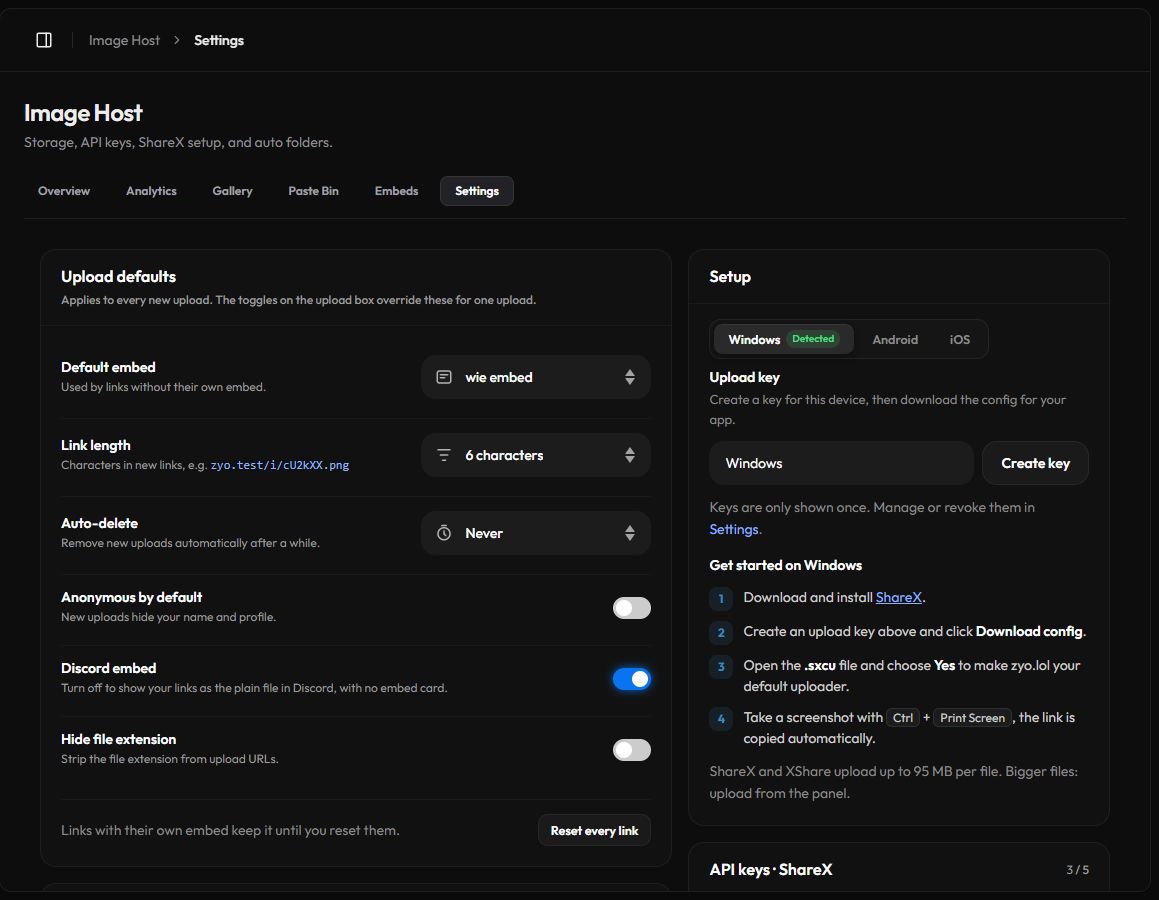
Upload defaults
These apply to every new upload. The toggles on the upload box override them for one upload.
| Setting | What it does |
|---|---|
| Default embed | The embed used by links that do not have their own. |
| Link length | How many characters new links have, from 5 to 12. The default is 6. |
| Auto-delete | Remove new uploads automatically after 1, 7, 30 or 90 days, or never. |
| Anonymous by default | New uploads hide your name and profile on the file page and in embeds. |
| Discord embed | On by default. Turn it off to show your links as the plain file in Discord, with no embed card. |
| Hide file extension | Removes the extension from links, so i.zyo.lol/aB3xK9q.png becomes i.zyo.lol/aB3xK9q. |
Reset every link puts all your files back on your default embed. Links with their own embed keep it until you do this.
Files you uploaded before changing it keep their old setting.
Auto folders
Rules sort new uploads into folders for you. A new upload without a folder goes to the folder of the first rule that matches.
- Create a folder first. Folders are made in the Gallery.
- Pick the folder. In the Auto folders card, choose where matching files go.
- Pick a match. File type (image, GIF or video), Extension is (for example
gif) or Name contains (for examplescreenshot). - Add it. Click Add rule. Drag rules to change their order, since the first match wins.
You can have up to 20 rules.
API keys and ShareX
A key lets an app upload to your account without logging in. Use one key per device so you can revoke them one at a time.
- Setup card: pick Windows or Android, click Create key, then Download config. See Uploading files for the full steps.
- API keys · ShareX card: type a name and click New key. Click Copy key or Download ShareX config.
- Revoke: click Revoke next to a key. Devices using it can no longer upload.
- Limit: 3 keys, or 5 with Premium.
Copy it right away, it will not be shown again. The list only shows the last 4 characters. Never post a key or a config file in public, and never share it with anyone, including staff.
To use a key in your own code, see the Image Host API.
Delete all files
The Delete all files card at the bottom removes every file from your Image Host. All links stop working for everyone and this cannot be undone. Pastes are not affected.