
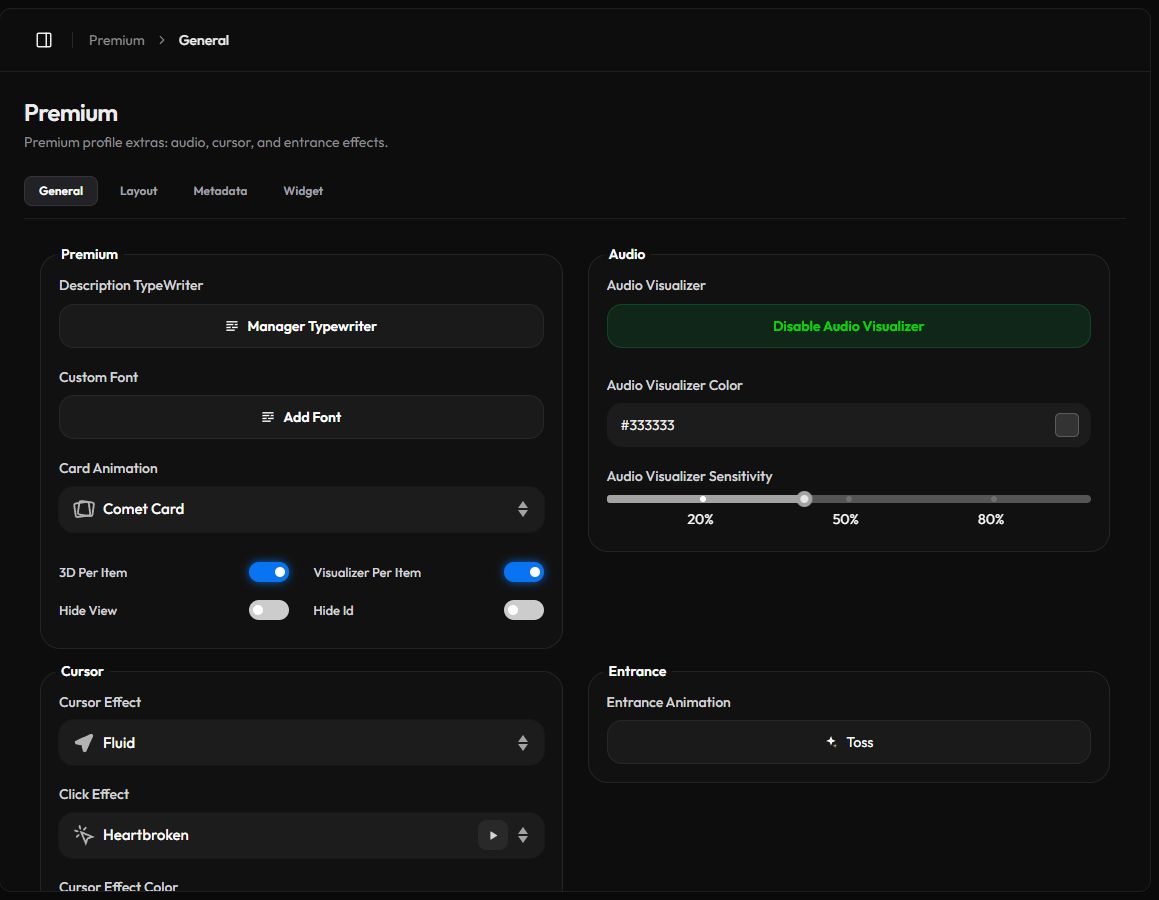
The General page holds the Premium extras for your whole profile: the typewriter description, custom fonts, card animation, the audio visualizer, cursor effects and the entrance animation.
Open it from Premium › General or go to zyo.lol/general.
When you change a switch, slider or dropdown, a bar appears at the bottom: Careful -- you have unsaved changes! Press Save Changes to keep them or Reset to undo. The enable buttons and the popups save on their own.
Description TypeWriter
Instead of a fixed description, your profile types out a line, deletes it and moves on to the next one.
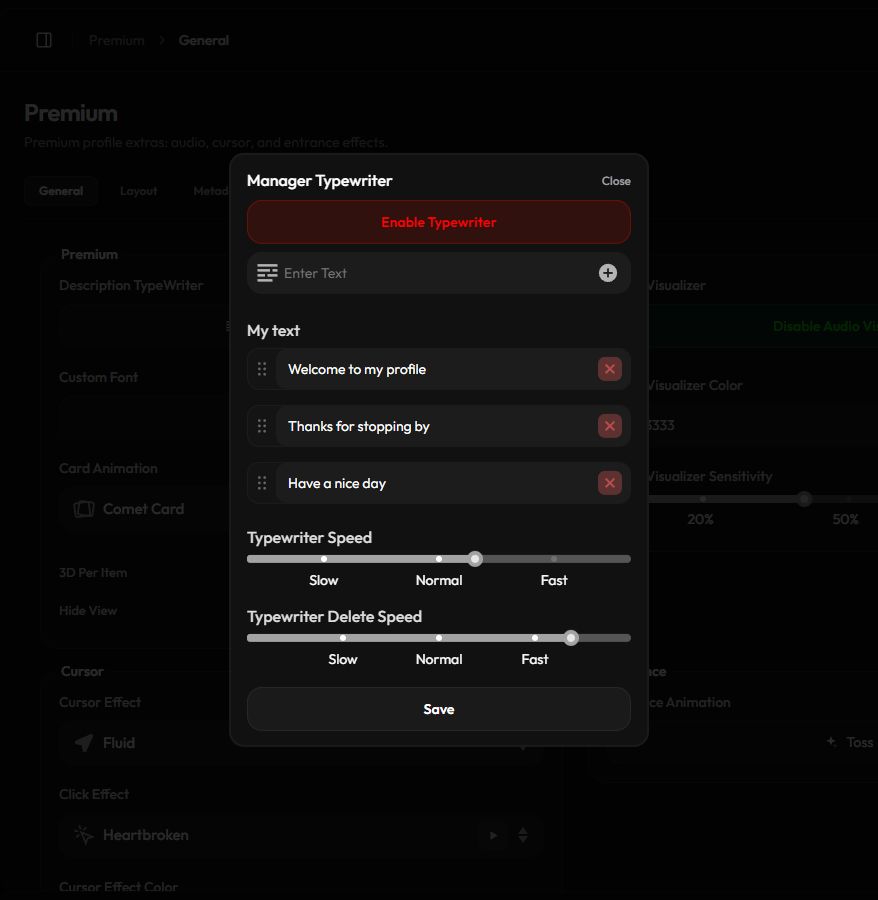
- Open the manager. Under Description TypeWriter, press Manager Typewriter.
- Turn it on. Press Enable Typewriter.
- Add your lines. Type a line in Enter Text and press the + button. Repeat for each line. Your lines appear under My text: drag the handle to reorder them, or press × to delete one.
- Set the speed. Drag the Typewriter Speed and Typewriter Delete Speed sliders between Slow and Fast, then press Save.
Custom Font
Use your own font for the text on your profile.
- Open the font popup. Under Custom Font, press Add Font.
- Upload the file. Drop a
.ttfor.otffile (10 MB max) into the box, then press Add Font. - Pick a size. Set Custom Font Size to Small, Default or Large. The preview under Your Font updates as you go.
- Turn it on. Press Enable Custom Font. Press Disable Custom Font to go back to your regular font.
Only upload fonts you're allowed to use on a website.
Card animation and display
| Option | What it does |
|---|---|
| Card Animation | None, 3D Card (the card tilts with the cursor) or Comet Card (a tilt with a moving shine). |
| 3D Per Item | Tilts each block, such as a link or widget, on its own instead of the whole card. |
| Visualizer Per Item | Makes each block react to your music instead of only the main card. |
| Hide View | Hides the view counter on your profile. |
| Hide Id | Hides your UID on your profile. |
Audio Visualizer
The visualizer makes your card border move with the music on your profile, so you need a track added in Customize first.
- Turn it on. Press Enable Audio Visualizer.
- Pick a color. Set Audio Visualizer Color.
- Set the sensitivity. Drag Audio Visualizer Sensitivity. Higher values react more strongly.
- Save. Press Save Changes in the bar at the bottom.
Cursor and click effects
- Cursor Effect adds something that follows the visitor's cursor: Cat Follow, Ghost, Following Dot, Bubbles, Snowflakes, Particles, Trailing, Dot Ghost, Sparking, Canvas, Fluid, Lightning Trail or Stardust.
- Click Effect plays when a visitor clicks: Sparkle, Heart Burst, Heartbroken, Ripple, Star Burst, Confetti, Lightning, Fireworks, Petals, Bubbles, Pixel or Particle Fall. Press Preview click effect to try it.
- Cursor Effect Color sets the color of the effect.
Busy effects can make text harder to read. Try a simple effect with a color that matches your theme.
Entrance animation
Choose how your card appears when someone opens your profile.
- Open the picker. Under Entrance Animation, click the current style.
- Try styles. Pick a style from the list to preview it on the sample card. Press the replay button in the corner to watch it again.
- Pick a speed. Choose Fast, Normal or Slow.
- Save. Press Save in the popup.
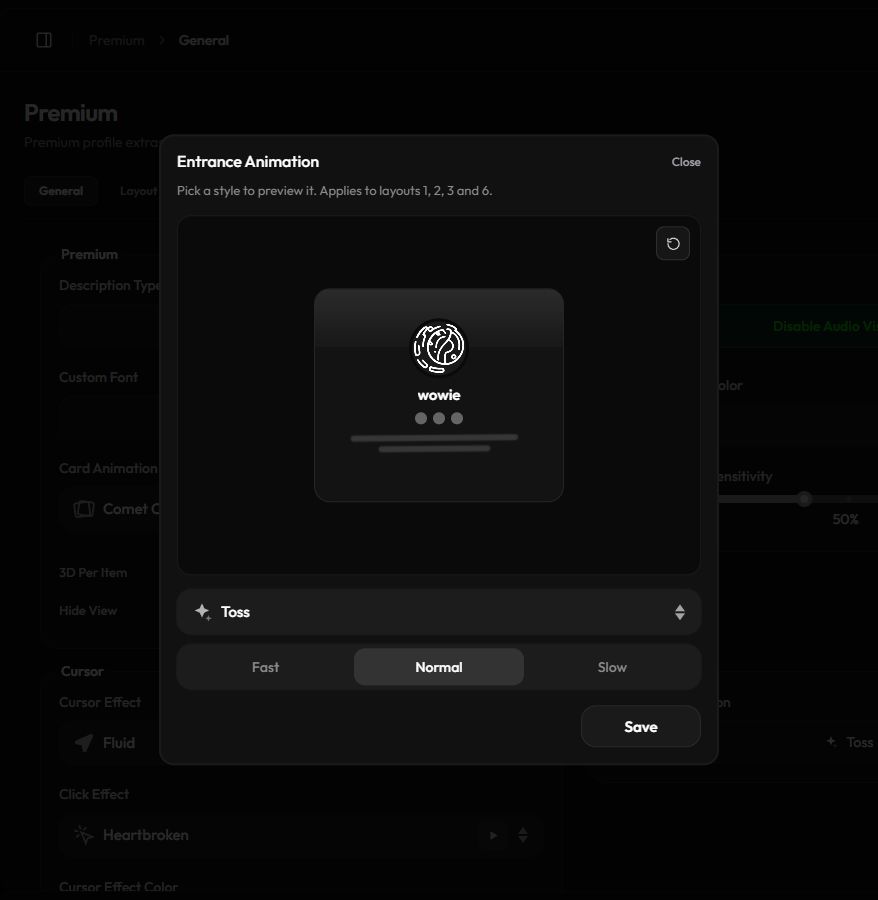
Entrance animations apply to layouts 1, 2, 3 and 6.