
An alias is an extra link that opens your profile. If your username is wowie, you could add zyo.lol/nothing and both links show the same profile.
How many aliases you get
Each alias uses one slot. Your slots come from two places, and they add up:
| Source | Slots |
|---|---|
| Premium | 5 alias slots included. |
| Alias Slot purchases | +1 slot each. They stack on top of Premium and are yours forever. |
Without Premium or a bought slot, you'll see Aliases are available for premium users or with an alias slot. when you try to add one.
Buy more slots
- Open Pricing. Go to zyo.lol/pricing and find the Alias Slot card under More products.
- Pick a quantity. Press Buy now and set the Quantity (1 to 10).
- Pay. Finish checkout. The slots are added to your account right away. See Buying items.
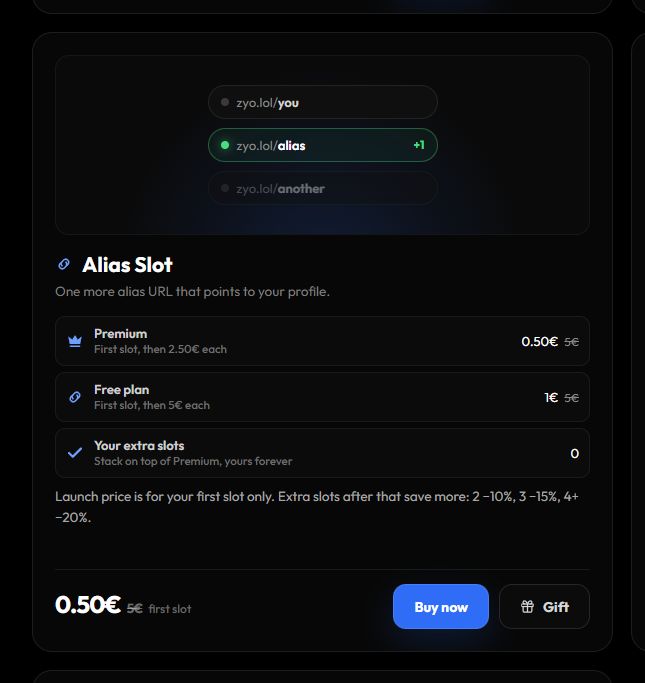
- Slots cost less if you have Premium.
- Your very first slot has a lower launch price.
- Buying several at once saves more: 2 slots −10%, 3 slots −15%, 4 or more −20%.
Current prices are on the Pricing page. You can also gift slots to a friend, see Gifts.
Add an alias
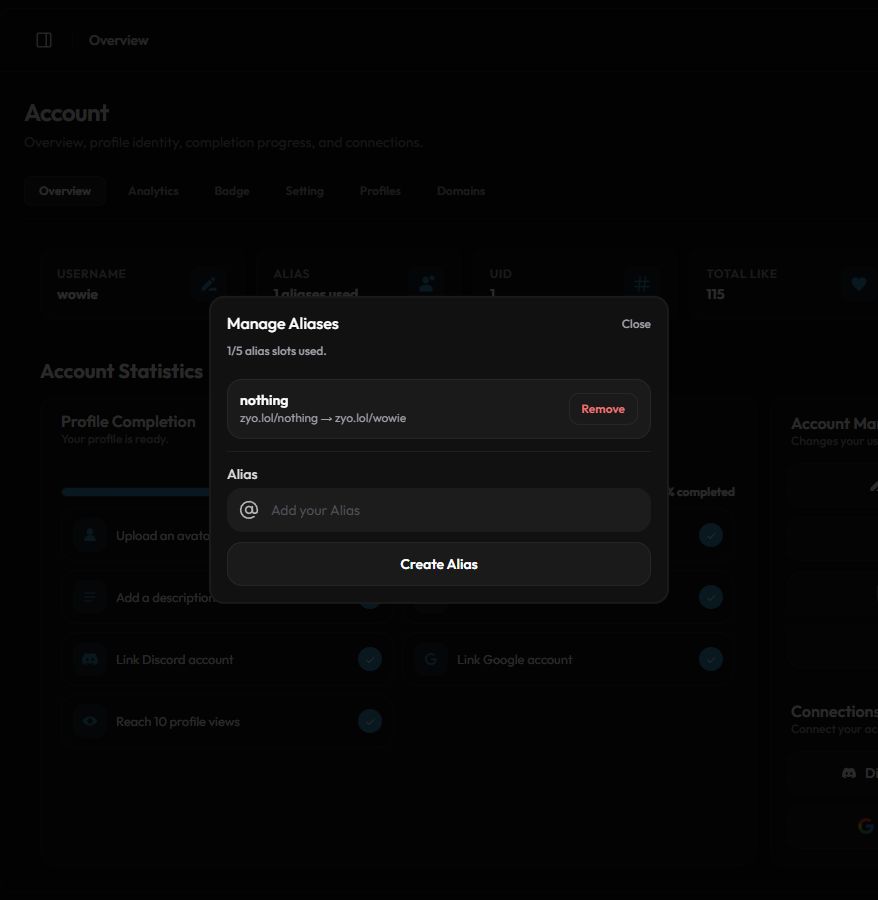
- Open the alias manager. On the Overview, press Manage Aliases in the Account Manager card. You can also open it from Account › Setting with the Manage button next to Profile Alias.
- Type the alias. Enter it in Alias. The popup shows how many slots you've used, like 1/5 alias slots used.
- Create it. Press Create Alias. It works right away.
Alias rules
- 3 to 20 characters.
- Only letters, numbers,
-,_and.. - It can't end with a period.
- It must not be taken: no other username or alias can use it.
- Some reserved words, like zyo.lol page names, can't be used.
Remove an alias
In Manage Aliases, press Remove next to the alias. The link stops working and the slot is free again, so you can use it for a new alias.
If Premium is removed
The 5 Premium slots only count while you have Premium. Slots you bought always stay.