
Image Host When you paste a file link into Discord, it shows an embed card. The Embeds tab lets you design that card with your own text, color and live stats.
Presets
Three ready-made embeds are always available:
| Preset | What it shows |
|---|---|
| Large + author | Your name and avatar, the file name, then resolution, size and views. This is the default. |
| Image only | Just the image, with no text. |
| Stats | Views and upload time as the title, then resolution, size and type, in green. |
Create your own embed
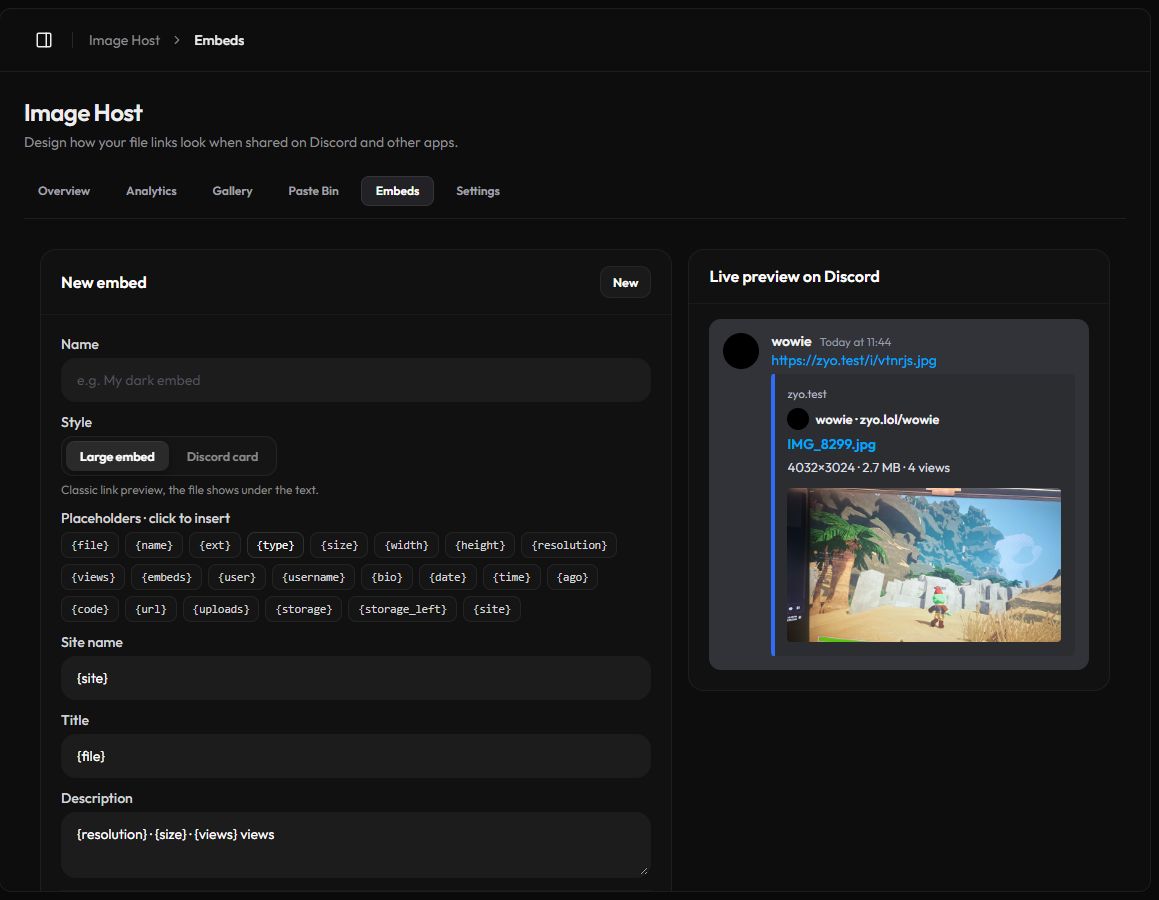
- Open the editor. Go to Panel › Image Host › Embeds. Click New to start from a blank embed, or Customize on one in your list.
- Fill in the fields. Give it a Name, then set the Site name, Title and Description.
- Add placeholders. Click a chip under Placeholders to insert live values like
{views}or{size}. - Pick a color. The color is the bar on the left of the Discord card.
- Choose extras. Show my zyo profile as author adds your name and avatar above the title. Public lists the embed in Community embeds.
- Save. Click Save embed. The Live preview on Discord shows the result as you type.
You can keep up to 30 custom embeds.
Placeholders
Placeholders are replaced with real values each time Discord loads the link.
| Placeholder | Shows |
|---|---|
{file}, {name}, {ext} | File name, name without extension, extension |
{type}, {size} | Image, GIF or Video, and the file size |
{width}, {height}, {resolution} | Image dimensions, for example 1280×720 |
{views}, {embeds} | Views and Discord embed loads |
{user}, {username}, {bio} | Your display name, username and zyo.lol profile link |
{date}, {time}, {ago} | Upload date, time and how long ago |
{code}, {url} | The file code and its link |
{uploads}, {storage}, {storage_left} | Your total uploads, storage used and storage left |
{site} | The Image Host domain, for example i.zyo.lol |
On anonymous files the author is hidden, {user} shows "Anonymous", and the profile and storage placeholders stay empty.
Choose which embed a link uses
- Default for everything: set Default embed in settings. Links without their own embed use it.
- For new uploads: pick an embed in the dropdown on the upload box before you upload.
- For one link: in the Gallery, open the file's ⋮ menu, choose Change embed, pick one and click Save for this link.
To put every link back on your default, use Reset every link in settings. If you delete an embed, links that used it go back to your default.
Turn off Discord embed in settings and Discord shows your links as the plain file, with no card.
Community embeds
At the bottom of the Embeds tab you can browse public embeds made by other users. Search by name or @user, sort by most used or newest, and star the ones you like. Click Use embed to copy one into your own list.
To share yours, turn on Public and use Copy share link. An embed that is exactly the same as a preset cannot be made public.