Account settings is where you change your login details, copy your profile links and see where you're logged in. Discord and Google connections live on the Overview page.
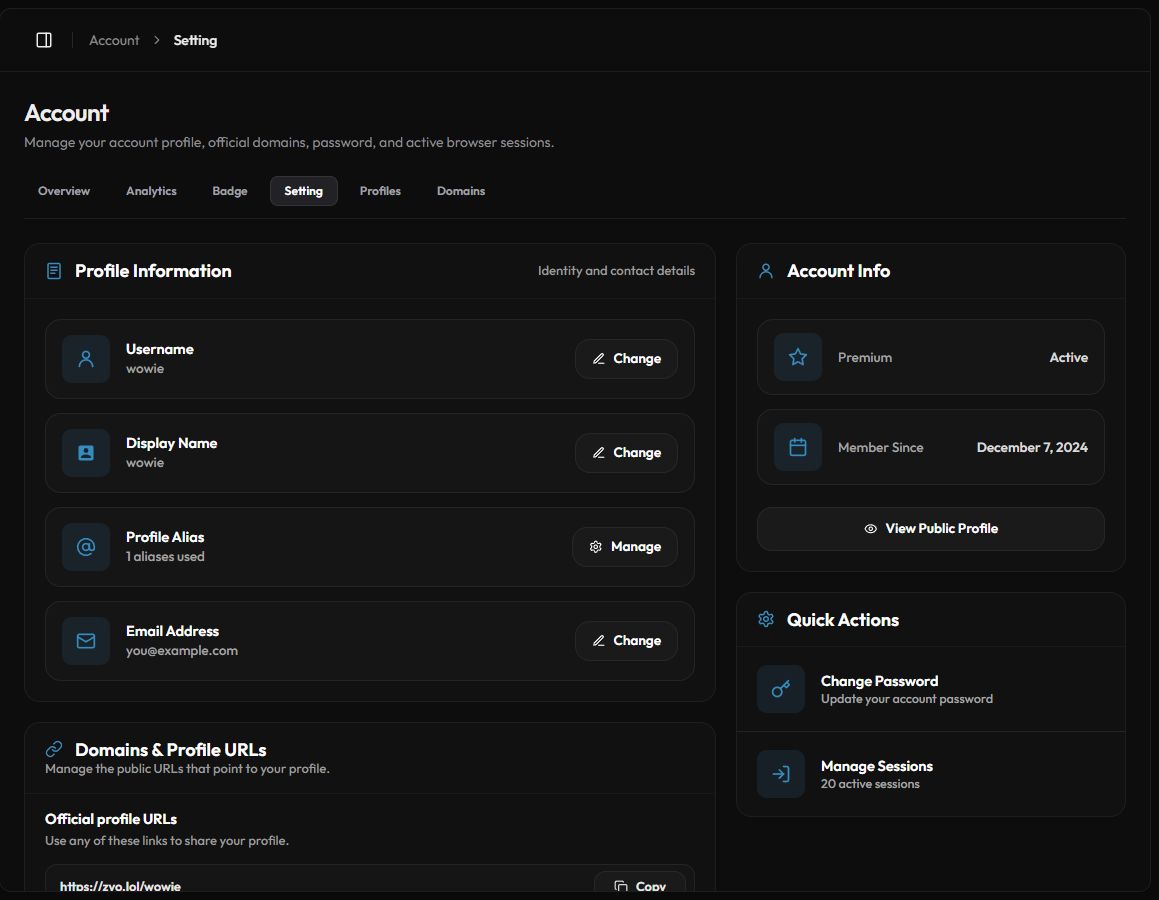
Profile Information
Open Account › Setting or go to zyo.lol/setting.
| Row | What you can do |
|---|---|
| Username | Change your profile link. Same rules as sign-up: 3 to 20 characters, a-z, 0-9, - _ .. |
| Display Name | Change takes you to the Customize page, where the name shown on your profile is edited. |
| Profile Alias | Manage extra links that open your profile. Premium |
| Email Address | Change your login email. You need your current password. |
Change your username
- Press Change. Next to Username, press Change.
- Type the new name. Enter it and press Save Changes.
After a username change, zyo.lol/oldname no longer opens your profile and someone else can claim it. Update the link wherever you shared it.
Aliases
An alias is a second name that opens the same profile, like zyo.lol/nickname. Premium includes 5 alias slots, and you can buy more slots in the shop. Aliases follow the same naming rules as usernames. See Aliases.
Domains & Profile URLs
Under Official profile URLs you'll find every official address for your profile, each with a Copy button: zyo.lol/you, you.zyo.lol, cutes.lol/you, hotwar.lol/you, eboy.asia/you and itooshii.lol/you.
The Account Info card shows whether Premium is active, your Member Since date and a View Public Profile button.
Password and login methods
- Change Password. Enter your current password, then the new one twice. Passwords need at least 9 characters.
- Setup Password. Signed up with Google? Your Google email is already verified, so you only create a password.
- Add Login Method. Signed up with Discord? Add an email and password so you can log in without Discord.
Add an email and password even if you always use Discord or Google. You need one before you can disconnect either account.
Active sessions
Press Manage Sessions under Quick Actions to see every browser where you're logged in, with its device, login time, location and expiry.
- Log Out ends one session.
- Log Out All Devices ends every session except the one you're using.
Change your password first, then press Log Out All Devices.
Discord and Google connections
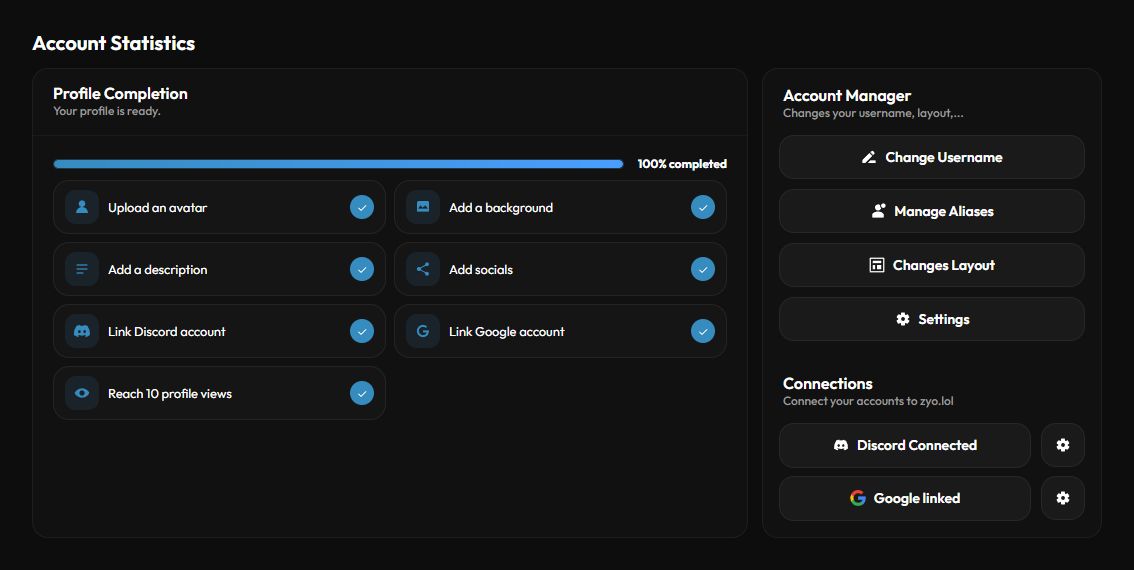
- Open the Overview. Go to zyo.lol/overview and find Connections.
- Press Connect Discord or Connect Google. Approve zyo.lol in the window that opens.
- Manage it. Once linked, the button reads Discord Connected or Google linked. The gear button next to it shows the linked account and a Disconnect Discord or Disconnect Google button.
Linking Discord lets your profile show your live Discord presence, and it checks off Link Discord account in Profile Completion.
If your account is linked to Discord but you left the zyo Discord server, the panel asks you to rejoin. Press Re-link Discord or join with the invite, then Check again.
Deleting your account
There is no delete button in the panel. To delete your account, contact the team on Discord. See Contact support.