Right after you sign up, zyo.lol walks you through a short setup. Once it's done, a few edits in the panel turn the empty profile into one you'll want to share.
The setup flow
The setup has four steps at zyo.lol/setup:
- Welcome. A short welcome and a preview of the next steps. Press Continue.
- Ready to upgrade? Compare Free and Premium. Press Get started to stay on Free, Upgrade now to buy Premium, or Skip for now.
- Choose your layout. Pick the look of your profile and press Continue.
- You're ready to go. Copy your link, then jump to Overview, Customize or Social Hub, or press Finish.
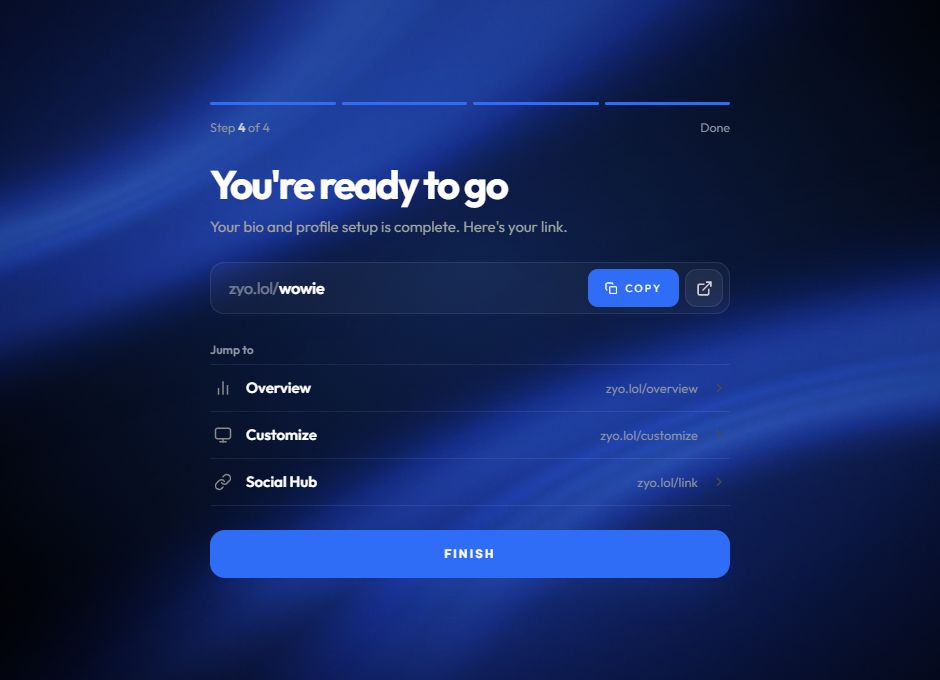
Your profile is only created once you pick a layout. Accounts that never get past this step are removed after about 24 hours.
Pick a layout
zyo.lol has six profile layouts. Layouts 1, 4, 5 and 6 are free. Layouts 2 and 3 need Premium.
You're not locked in. Change it later from Overview › Account Manager › Changes Layout. See Layouts for how they differ.
Your first edits
Open zyo.lol/customize and work through these:
- Upload an avatar. In Assets › Avatar, click the upload button and crop your image.
- Add a wallpaper. In Assets › Wallpaper, press Upload your file. An image, GIF or short video all work.
- Write your name and description. Fill in Display Name and Description under Information.
- Add your socials. Go to Customization › Link and press Add Link.
- Connect Discord. On the Overview, press Connect Discord to show your live status.
When you change a field, a bar appears at the bottom: "Careful -- you have unsaved changes!". Press Save Changes to keep your edits, or Reset to undo them. Uploads save on their own. Open your profile in another tab with View Profile in the sidebar to see changes live.
Track your progress
The Profile Completion card on the Overview ticks off each step as you go: avatar, background, description, socials, Discord, Google and your first 10 profile views.
Share your link
Your profile lives at zyo.lol/yourname. Put it in your Discord "About me", TikTok, Instagram or YouTube bio. It also works at yourname.zyo.lol and on the other official domains.
Want a head start? Apply a community design from Customization › Template. See Templates.